
Power BI Performance Analyzer is a built-in tool in Power BI Desktop that records how long each visual takes to load when you interact with a report. Open it from the Optimize ribbon, select Start recording, interact with your report and it breaks each visual’s load time into DAX query, visual display and other processing time. That shows you exactly which visuals are slowing your report down, and why.
Data-driven decisions depend on reports people actually use. Microsoft Power BI makes it easy to build those reports, but a beautiful dashboard that takes ten seconds to load quickly loses its audience.

That’s where Power BI Performance Analyzer comes in. It’s one of the most useful features in Power BI Desktop, and one of the least used. This guide explains what it does, how to use it step by step, how to read the results and what to do next.
Why Power BI Report Performance Matters
Power BI’s most useful features make reporting fast and flexible:
- Connectors to hundreds of data sources
- Power Query Editor to clean, transform and model data
- Visuals such as charts, maps and tables that make data easy to understand
- Reports and dashboards that are easy to build and share
But speed matters as much as features. Fast reports build trust with stakeholders and encourage people to use them every day. Slow reports and poor user experience do the opposite, and users drift back to spreadsheets.
Performance Analyzer helps you find and fix the visuals that slow reports down, before your users notice. your reports’ performance and determining the cause of the impact.
What Is Power BI Performance Analyzer?
Power BI Performance Analyzer measures how long each report element takes to update or refresh whenever a user interaction triggers a query. For example, changing a slicer means Power BI must update the slicer, send a query to the data model and redraw every affected visual.
Performance Analyzer logs each of those steps and presents the results so you can view, drill into or export them. It shows you which visuals are affecting your report’s performance and what’s causing the delay.
How to Use Power BI Performance Analyzer: Step by Step
Step 1: Open the Performance Analyzer Pane
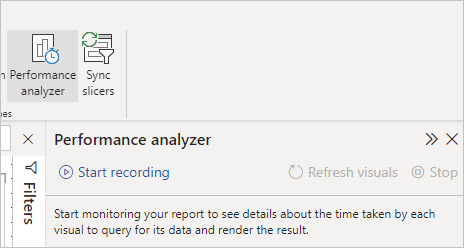
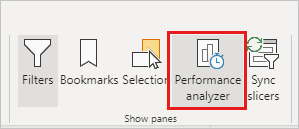
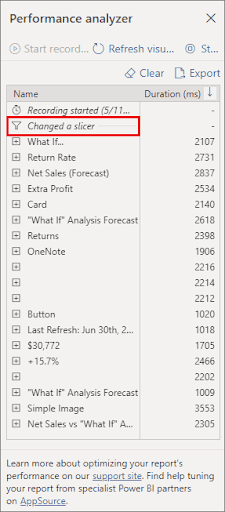
In Power BI Desktop, go to the Optimize ribbon and select Performance analyzer. The pane opens to the right of the report canvas. (In some versions, you’ll also find it on the View ribbon.)
Step 2: Start Recording
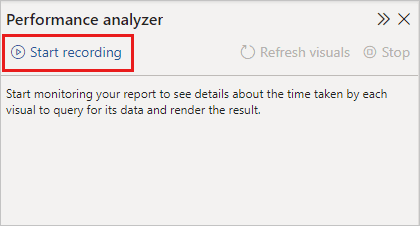
Select Start recording. The button turns grey while recording is active, and the Stop button becomes available.
Step 3: Interact With Your Report
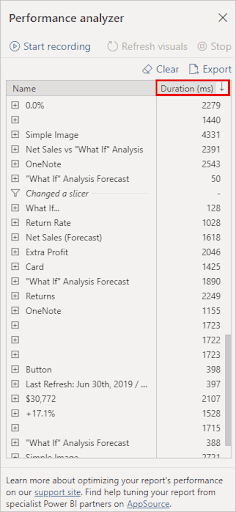
Click visuals, change slicers and filters or move between pages, just as a normal user would. Every action appears in the pane in real time, each under its own heading describing the interaction that triggered it, such as “Changed a slicer.”
To measure every visual on the current page at once, select Refresh visuals.
Step 4: Read the Timings for Each Visual
Expand any visual in the log to see how its total time, in milliseconds, breaks down:
- DAX query: the time between the visual sending its query and Analysis Services returning the results. High numbers usually point to complex measures or a heavy data model.
- Visual display: the time the visual takes to draw on screen, including loading web images or geocoding for maps. High numbers usually mean too many data points or a heavy custom visual.
- Other: time spent preparing queries, waiting for other visuals to finish or doing background work. High numbers often mean too many visuals on one page.
If your model uses DirectQuery, you’ll also see a Direct query line, showing how long the source database took to respond.
Canvas and visual operations run one after another on a single user interface thread, so these durations include time spent waiting for other operations to finish.
Step 5: Stop, Analyse and Export
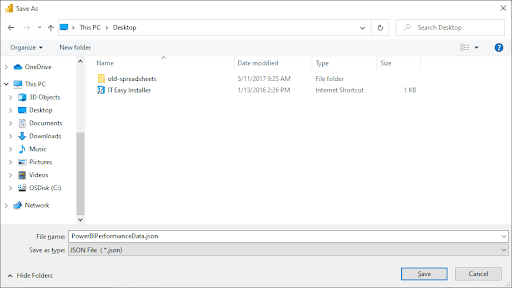
Select Stop when you’re done. The results stay in the pane for you to review. Select Export to save them as a .json file, which you can share with your team or load into other tools for deeper analysis.
Pro Tip: Start Recording From a Blank Page
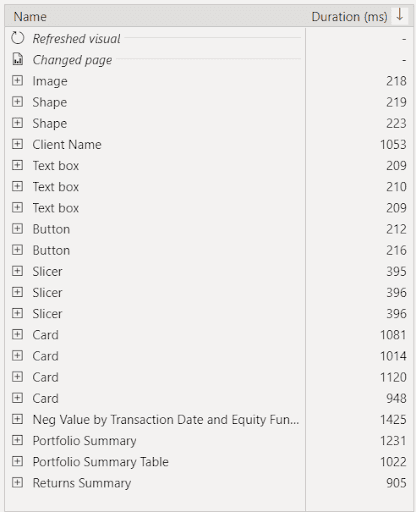
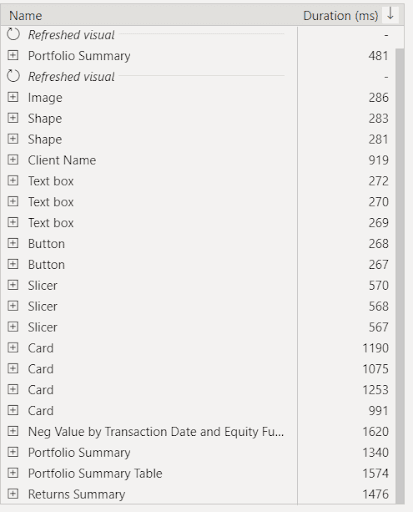
Power BI Desktop caches visuals and data, much like a web browser. If you start recording on a page that has already loaded, the timings can look much faster than real users will experience.
To get accurate results:
- Add a blank page to your report and select it
- Select Start recording while on the blank page
- Switch to the report page you want to test
- Interact with the page, or select Refresh visuals
- Stop recording and compare the results
Because the page loads fresh, you see the true first-load time, which is what your users experience when they open the report.
What to Do After Finding Slow Visuals
Performance Analyzer tells you where the problem is. Here’s how to fix the most common causes:
- High DAX query time: use Copy query on the slow visual and test it in DAX Query View or DAX Studio. Simplify complex measures, avoid unnecessary iterators and reduce high-cardinality columns.
- High visual display time: reduce the number of data points, avoid heavy custom visuals and limit tables with thousands of rows.
- High “Other” time: reduce the number of visuals on the page, combine related cards into one visual or split busy pages into several.
- Slow DirectQuery: optimise the source database, add aggregations or consider Import mode where it suits your data.
Re-run Performance Analyzer after each change to confirm the improvement.
Conclusion
Power BI Performance Analyzer turns guesswork into clear answers. In a few minutes, it shows exactly which visuals slow your report down and why, so you can fix them and deliver reports people trust and use every day.
Make it part of your routine before publishing any report, and your users will notice the difference.
Get Faster, Smarter Power BI Reports With City & Talent
City & Talent offers Power BI consulting services, from data modelling and DAX optimisation to dashboard design and performance tuning, with teams in Mumbai, Delhi and Dubai. If your reports are slowing your team down, get in touch with our team.
With Blank Page
Frequently Asked Questions
What is Performance Analyzer in Power BI?
Performance Analyzer is a built-in Power BI Desktop tool that records how long each visual takes to load when you interact with a report. It breaks each visual’s time into DAX query, visual display and other processing, so you can find and fix slow visuals.
Where is Performance Analyzer in Power BI Desktop?
Open the Optimize ribbon and select Performance analyzer. The pane appears to the right of the report canvas. In some versions, it’s also available from the View ribbon.
What does DAX query time mean in Performance Analyzer?
DAX query time is how long a visual waits between sending its query and receiving results from the data model. High DAX query times usually point to complex measures, inefficient formulas or a large, poorly optimised data model.
Why are my Power BI reports slow?
Common causes include complex DAX measures, too many visuals on one page, visuals showing large numbers of data points, heavy custom visuals, high-cardinality columns and slow DirectQuery sources. Performance Analyzer shows which of these affects your report.
Can I export Power BI Performance Analyzer results?
Yes. Select Export in the Performance Analyzer pane to save the results as a .json file, which you can share or analyse in other tools.